GitHub App Setup
Complete the two-step setup: authorize CodeInput to connect with your GitHub account, then install the app on your organization or personal account.
After creating your account, you need to complete two steps to start resolving merge conflicts: authorize the application, then install it on your GitHub account or organization.
Understanding the Two-Step Process
GitHub Apps require two separate permissions:
- Authorization - Connect your GitHub identity with CodeInput
- Installation - Install the app on your organization or account (repository access)
These are independent steps—you can authorize without installing, and an organization can have the app installed even if you haven't personally authorized it yet.
Step 1: Authorize the Application
First, you'll authorize CodeInput to connect with your GitHub account.
- After creating your account, you'll be redirected to the authorization page
- Review the permissions CodeInput is requesting
- Click Authorize CodeInput to grant access
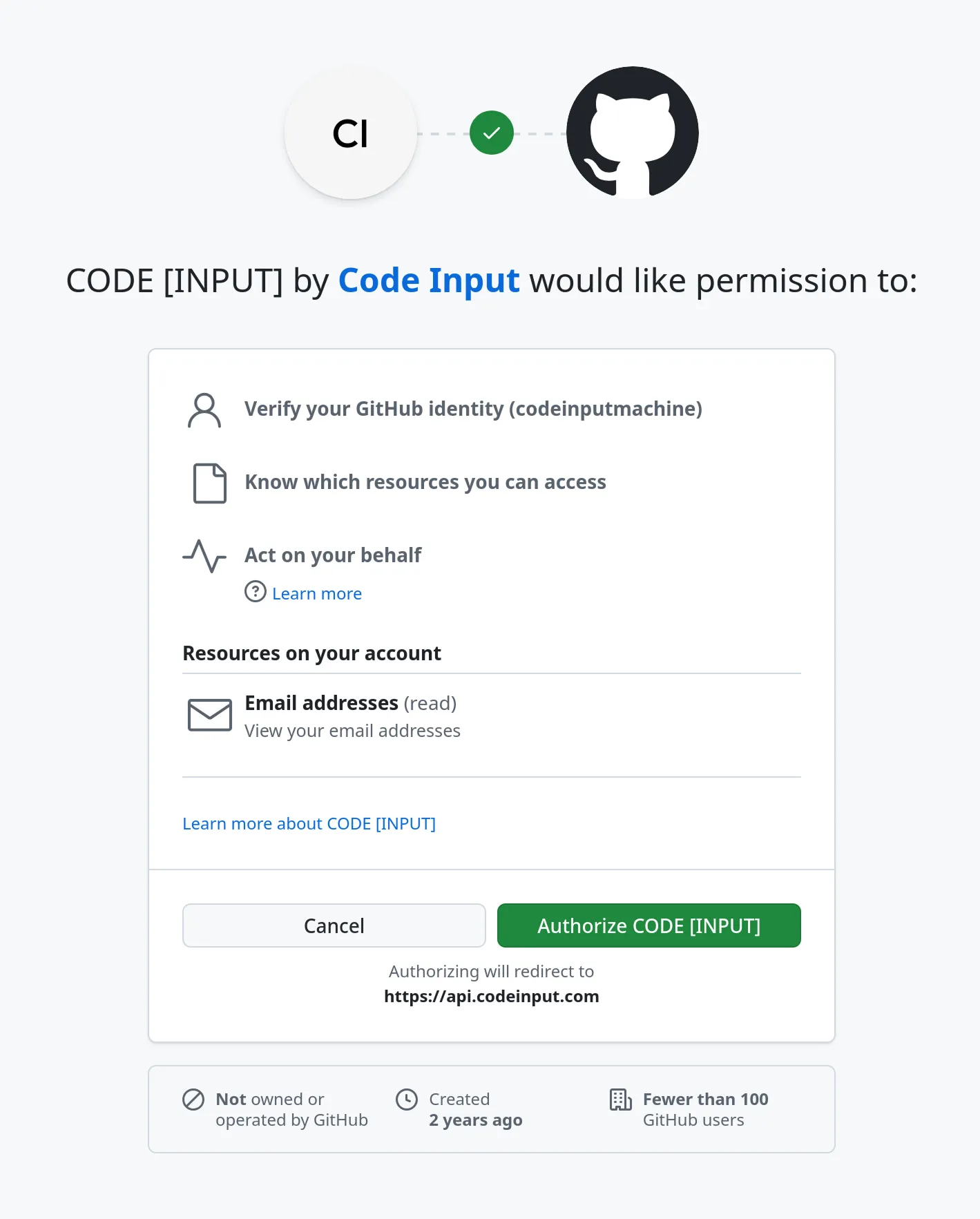
What "Act on Your Behalf" Really Means
You may see a message saying the app can "act on your behalf." This is standard GitHub wording that appears for all GitHub Apps—it simply means:
- When CodeInput performs actions on GitHub, your identity is attached to them
- For example, if CodeInput posts a comment on a pull request, it will show as being posted by you via CodeInput
- This is completely transparent—any action shows both your profile picture and the CodeInput badge
What this enables:
- CodeInput can verify your GitHub identity
- CodeInput can access the repositories and resources you have access to
- CodeInput can perform actions like posting comments or creating branches when resolving conflicts
What this doesn't mean:
- CodeInput cannot do anything beyond the specific permissions you approve
- All actions are clearly visible and attributed to you via the app
- You maintain full control and can revoke access at any time
Step 2: Install the Application
After authorizing, you'll install the GitHub App on your organization or personal account. This determines which repositories CodeInput can access.
- Choose where to install:
- Your organization - If you're an organization owner
- Your personal account - For individual repositories
- Choose which repositories to grant access to:
- All repositories - Grant access to all current and future repositories
- Only select repositories - Choose specific repositories
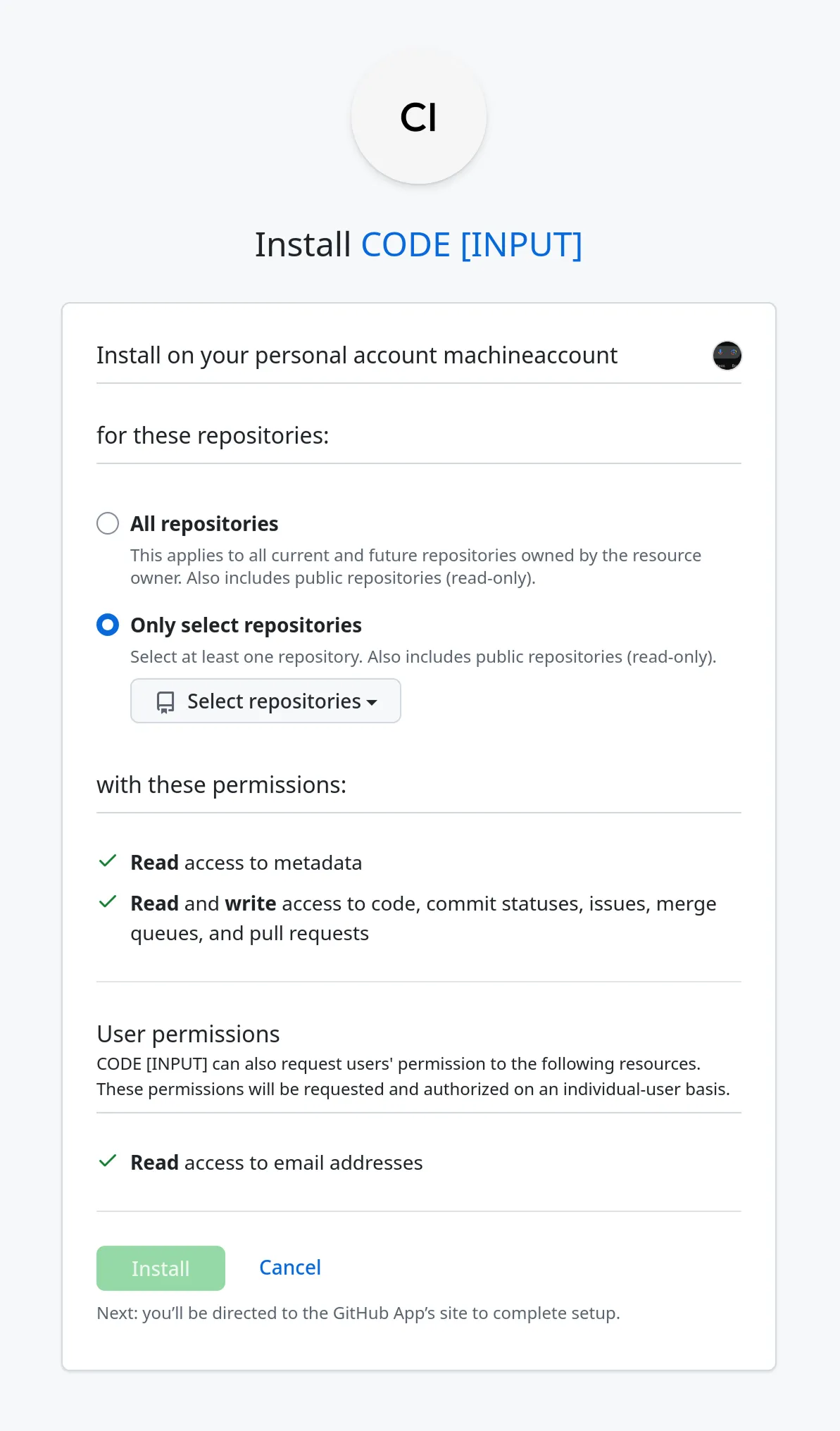
- Click Install to complete the setup
What this does:
- Grants CodeInput access to your chosen repositories
- Enables webhooks for real-time conflict detection
- Allows CodeInput to monitor pull requests and merges
What Happens Next
Once both steps are complete, CodeInput will:
- Listen to events from your repositories (pull requests, pushes, merges)
- Detect merge conflicts as they occur
- Display conflicts in your dashboard for resolution
You'll be redirected to your dashboard where you can start reviewing and resolving conflicts.
About Organization Installations
An organization can only have the CodeInput GitHub App installed once. This means:
- If someone on your team has already installed CodeInput on your organization, you don't need to install it again
- All team members can use CodeInput for repositories where it's installed
- Each member still needs to complete Step 1 (Authorization) to access the dashboard
- New members joining the organization don't need to reinstall—just authorize and go
Installation Scenarios
You're an organization owner
You can install CodeInput directly on your organization. All team members will benefit from the single installation.
You're not an organization owner
- Ask your organization's administrator to install CodeInput
- Or install the app on your personal account for personal repositories
The app is already installed on your organization
If CodeInput is already installed:
- Simply create your account and complete Step 1 (Authorization)
- You'll automatically have access to repositories where the app is installed
- No installation is needed
Granting Access to Additional Repositories
If you chose Only select repositories during installation and want to add more later:
- Go to
https://github.com/{orgname}/settings/installations - Find CodeInput in the list of installed apps
- Click Configure or Manage access
- Add or remove repositories as needed
Troubleshooting
I don't see my organization in the installation list
You must be an organization owner to install the GitHub App. If you're not an owner:
- Contact your organization's administrator to request installation
- Or install the app on your personal account for personal repositories
I can't see certain repositories in my dashboard
Ensure that:
- The CodeInput GitHub App has been granted access to those repositories
- Check your organization's GitHub App settings at
https://github.com/{orgname}/settings/installations - Verify you have the necessary permissions to access those repositories on GitHub
Do I need to install if I'm joining a team that already uses CodeInput?
No. If your organization already has CodeInput installed, you only need to:
- Create your CodeInput account
- Complete Step 1 (Authorization)
The app installation is shared across the entire organization.
Next Steps
With authorization complete and the GitHub App installed, you can now:
- View and resolve merge conflicts in your dashboard
- Set up CODEOWNERS for automatic conflict assignment
- Install the CLI for terminal-based conflict resolution
Need Help?
If you encounter any issues:
- Contact support@codeinput.com
- Follow us on Bluesky
Sources: