Resolving Git Conflicts
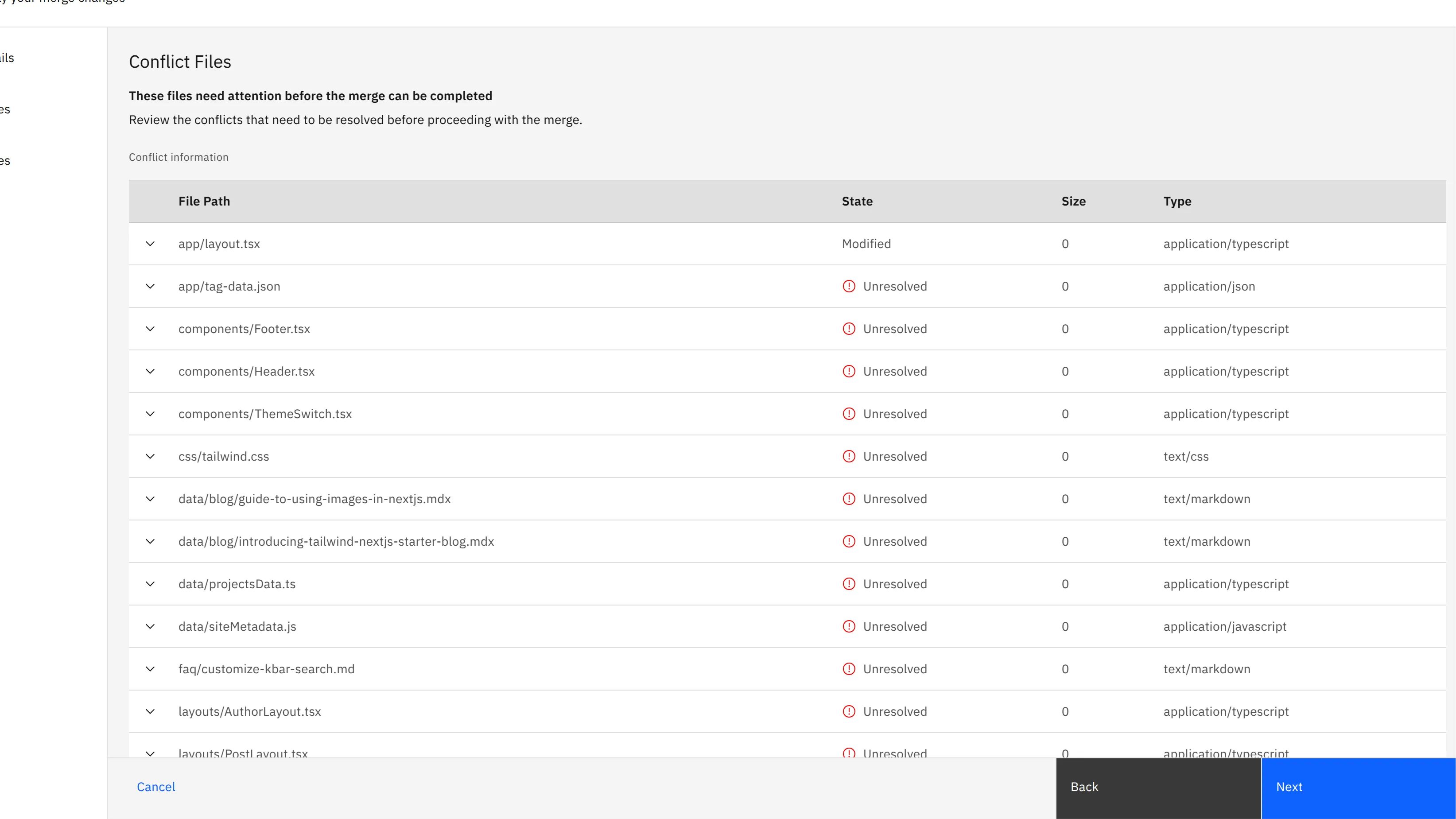
When Git detects a conflict during a merge, it means changes in your current branch and the branch you're merging overlap in a way Git can't automatically resolve. Instead of pulling the changes locally and resolving them in your development environment, you can handle this directly in code input's web interface.
Opening the conflicting file in code input shows you a three-way merge view - your changes on the left, the incoming changes on the right, and the base version in the middle. You can edit the file directly in the merge editor, choosing which changes to keep or how to combine them. The editor highlights the conflicting sections clearly, making it easy to spot where you need to make decisions.
Once you're satisfied with your changes, click the "Resolve Conflict" icon to mark the file as resolved. After resolving all conflicting files, you can commit the changes and push them back to the repository - all without touching your local environment. This approach is particularly useful when you're on a different machine or don't want to switch context in your local development setup.