Have you ever stared at a merge conflict and wondered what ours, theirs, and base are?
These three versions are key to understanding how Git's three-way merge works.
In this article, we'll break down each one and explain how merge conflicts happen.
How Merge Conflicts Happen
A merge conflict occurs when two branches modify the same part of a file in different ways.
git can't decide which change to keep, so it stops and asks you to resolve it manually.
For example, say Alice and Bob both branch off from the same commit.
Alice changes the error message in auth.js to say "Invalid credentials".
Bob changes the same line to say "Wrong username or password".
When their branches are merged, git sees two different changes to the same line with no clear winner.
That's a conflict.
This is also why conflicts are less common than you'd expect.
If Alice edits one section of auth.js and Bob edits another, git can often merge both changes cleanly with no conflict.
Simple Merge Conflict Example
Let's look at a concrete example.
This repository has two files, file1.txt and file2.txt.
The master branch has 3 commits and the feature branch has 2 commits.
Both branches started from the same initial commit, where both files had the same content:
hello world
From there, each branch diverged on the same files and lines.
On master, both files were updated across two separate commits:
hello from master
On feature, also across two separate commits, they were updated to:
hello from feature branch
Now we have two conflicting versions of the same lines.
This isn't a decision git can make automatically, so if you try to merge, you'll get a merge conflict.
Merge Conflict Markers
When we try to merge feature into master, git sees that both branches modified the same lines from the same starting point and stops:
$ git merge featureAuto-merging file1.txtCONFLICT (content): Merge conflict in file1.txtAuto-merging file2.txtCONFLICT (content): Merge conflict in file2.txtAutomatic merge failed; fix conflicts and then commit the result.
git couldn't decide which version to keep, so it paused and marked the conflicting sections directly inside the files.
Opening file1.txt (and similarly file2.txt) reveals this:
<<<<<<< HEADhello from master=======hello from feature branch>>>>>>> feature
By default, git only shows two versions: what your current branch has, and what the incoming branch has.
The base (the version both branches started from) is used internally to detect the conflict, but git doesn't show it unless you configure it to.
To expose the base, enable the diff3 conflict style:
git config --global merge.conflictstyle diff3
Now re-triggering the same merge produces:
<<<<<<< HEADhello from master||||||| c256ee4hello world=======hello from feature branch>>>>>>> feature
The middle section, between ||||||| and =======, is the base: the file as it existed in the common ancestor commit c256ee4, before either branch touched it.
Tip: If you're on Git 2.35 or later, consider
zdiff3instead ofdiff3. It's a stricter variant that eliminates some false conflicts by being smarter about what it considers a genuine change, with no other downsides.
This three-section format is where the terms ours, theirs, and base come from. They didn't originate in Git; they come from diff3, a Unix utility dating back to 1979 that compares three versions of a file: the original and two diverging copies. Git's conflict markers are essentially diff3 output rendered inline, and the vocabulary traveled with the algorithm into every tool built on top of it: IDEs, merge tools like vimdiff or kdiff3, and Git's own documentation.
Understanding the Three Versions: Ours, Theirs, and Base
Base is the common ancestor: the last commit both branches share before they diverged.
In our example, that's the initial commit (c256ee4), where both files contained hello world.
It's the neutral starting point that neither branch exclusively "owns".
Ours is the version on the branch receiving the merge, the one you're currently on.
In our case, we ran git merge feature while on master, so ours is the master version: hello from master.
It's worth being explicit here: ours has nothing to do with who wrote the code or who "owns" it in any meaningful sense.
Git has no concept of ownership.
It's purely about which branch is receiving the changes.
Theirs is the version coming from the branch being merged in.
Here that's feature, so theirs is hello from feature branch.
Looking back at the conflict marker, it maps directly:
<<<<<<< HEAD <- ours (master)hello from master||||||| c256ee4 <- base (initial commit)hello world=======hello from feature branch>>>>>>> feature <- theirs (feature)
One thing worth noting: ours and theirs flip depending on how you ran the merge.
If you had switched to feature and run git merge master instead, feature would be ours and master would be theirs.
The base stays the same either way, since the common ancestor doesn't change.
This also means the labels can surprise you during a git rebase.
When you rebase your local branch onto another, Git replays your commits one by one, and in that process the incoming branch becomes ours and your own commits become theirs.
It's counterintuitive, but it follows the same rule: ours is always whichever side is receiving the changes at that moment.
Arguably, more intuitive names would be receiving and incoming, describing which branch is accepting the changes and which is providing them. But ours and theirs are deeply embedded in the history of version control tooling, so that's what stuck.
Resolving Conflicts
Once you understand which version is which, resolution is straightforward. If you want to accept one side entirely without editing, Git provides a shortcut:
git checkout --ours path/to/file # keep your branch's versiongit checkout --theirs path/to/file # keep the incoming version
For anything more nuanced, such as keeping part of each side or blending changes together, you'll need to edit the file manually or reach for a visual tool.
Seeing all three versions side by side makes that much easier than reading inline markers. Instead of mentally reconstructing what changed and where, a 3-way diff tool lays it out visually: what your branch has, what the incoming branch has, and what the original looked like before either touched it.
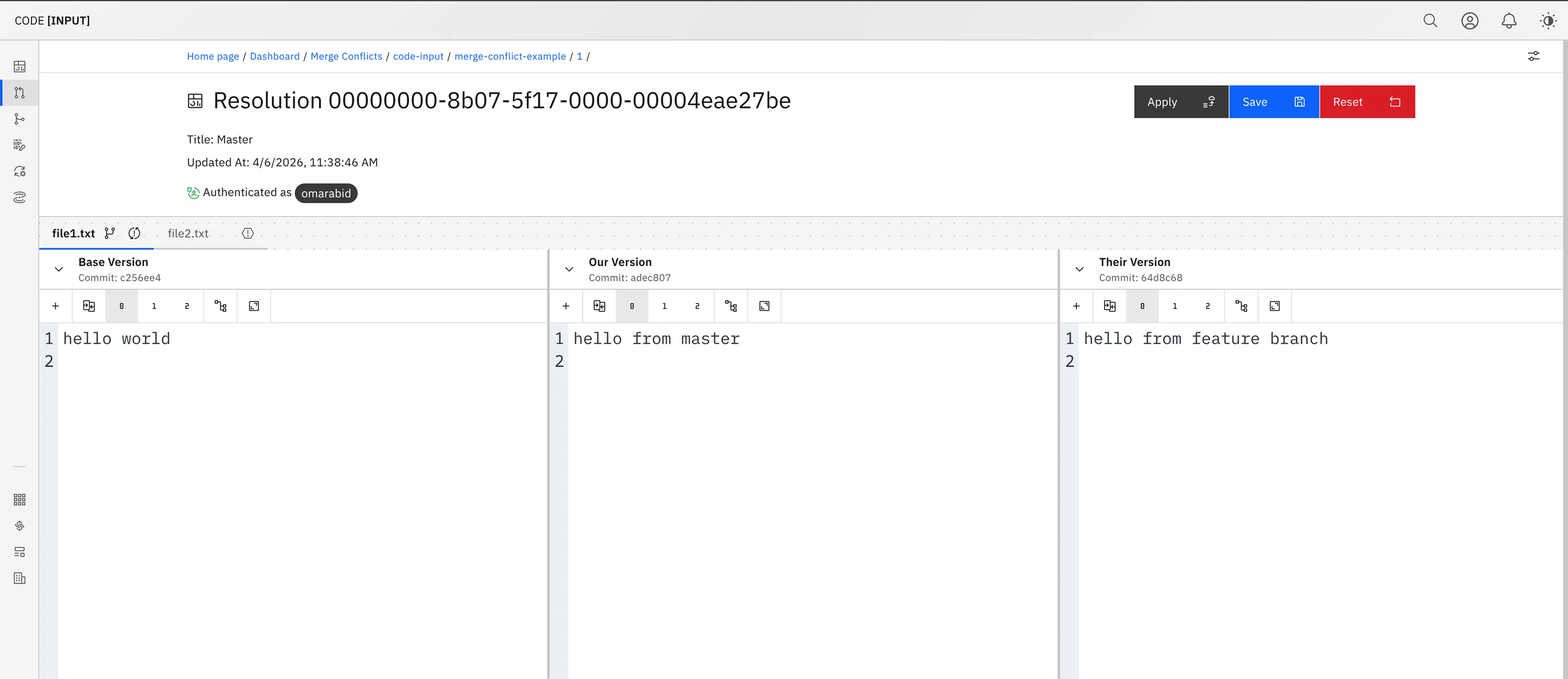
If you'd like a purpose-built UI for this, Code Input's merge conflict tool shows all three versions at once and lets you apply diffs between any two of them directly from your browser, with no local setup required.